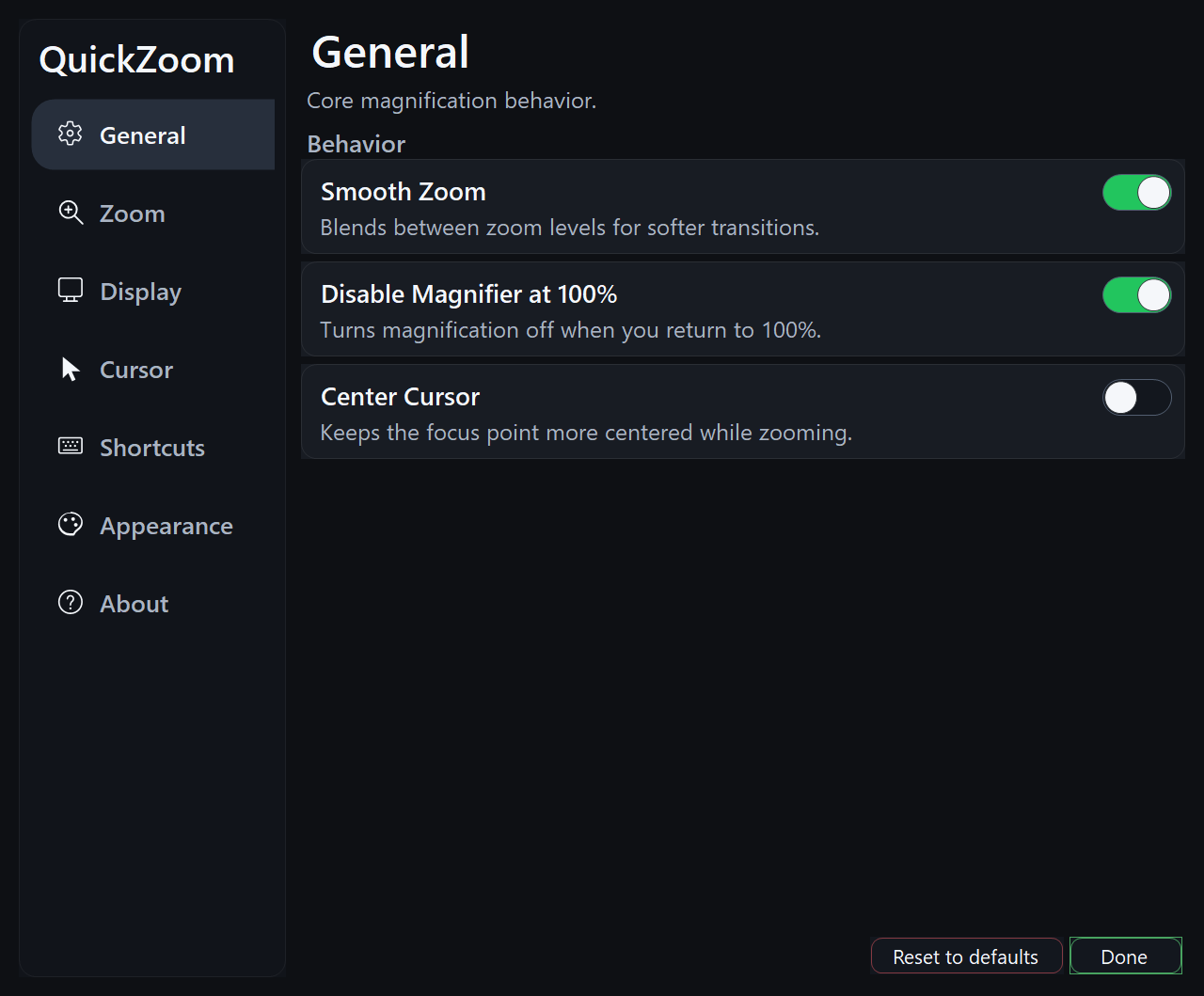
General behavior
Smooth zoom, follow cursor, center cursor, and auto-disable at 100% keep magnification predictable during daily use.
A lightweight screen magnifier that activates fast, managed from the tray and gives you fantastic accessibility the moment you need it.
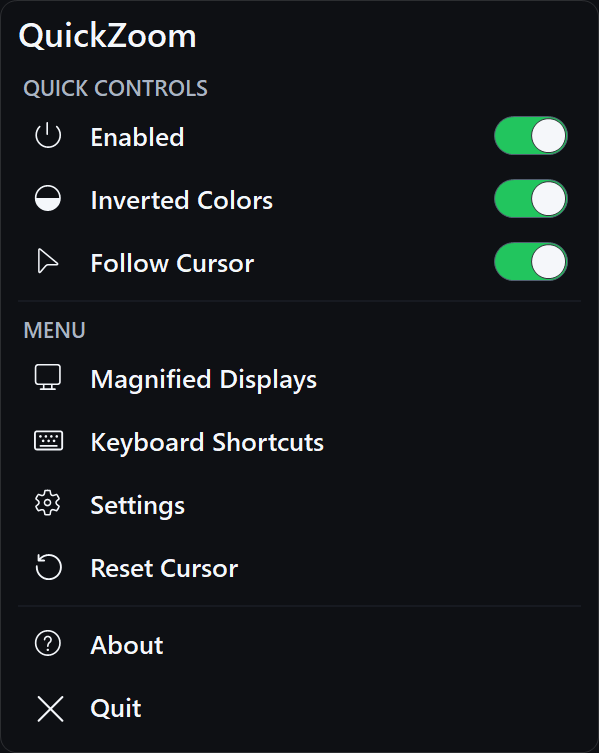
Built for everyday access
QuickZoom was built as a simpler alternative to bulky accessibility suites and the slower parts of Windows Magnifier. It keeps the controls close, clear, and quiet.
Features
Smooth zoom, follow cursor, center cursor, and auto-disable at 100% keep magnification predictable during daily use.
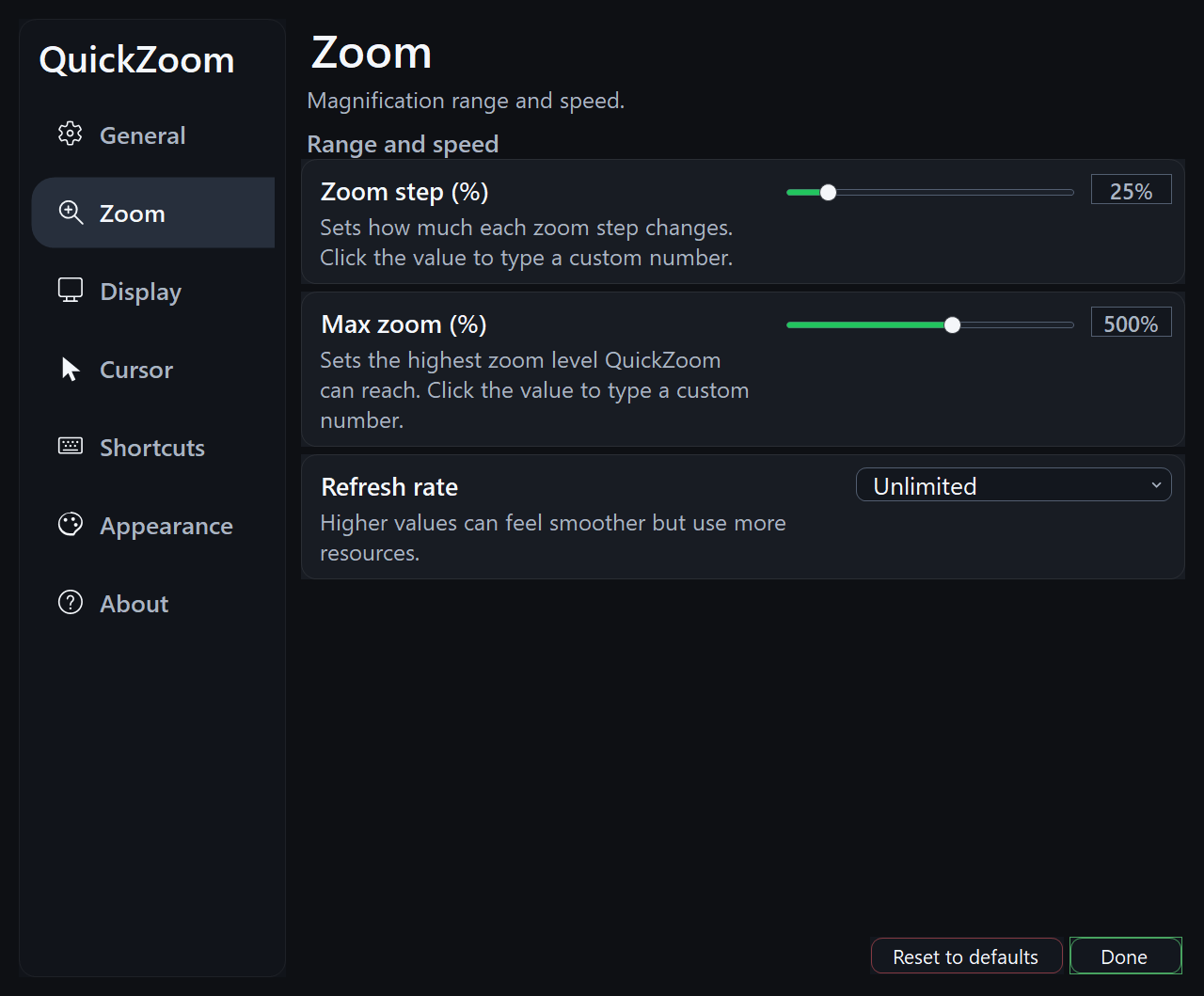
Set the zoom step, maximum zoom level, and refresh rate so movement feels responsive without being too aggressive.
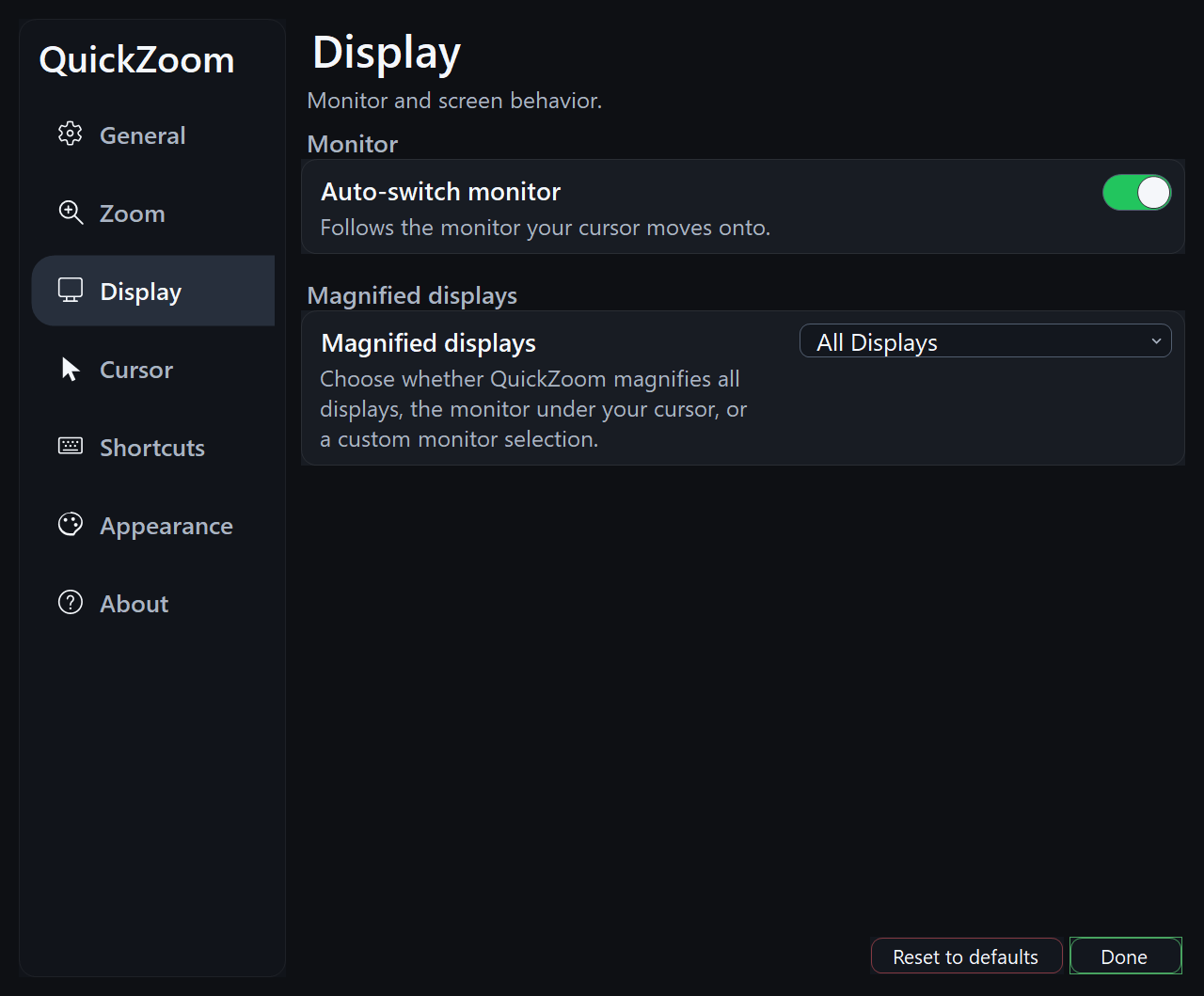
Choose all displays, the monitor under the cursor, or a custom monitor selection for multi-screen setups.
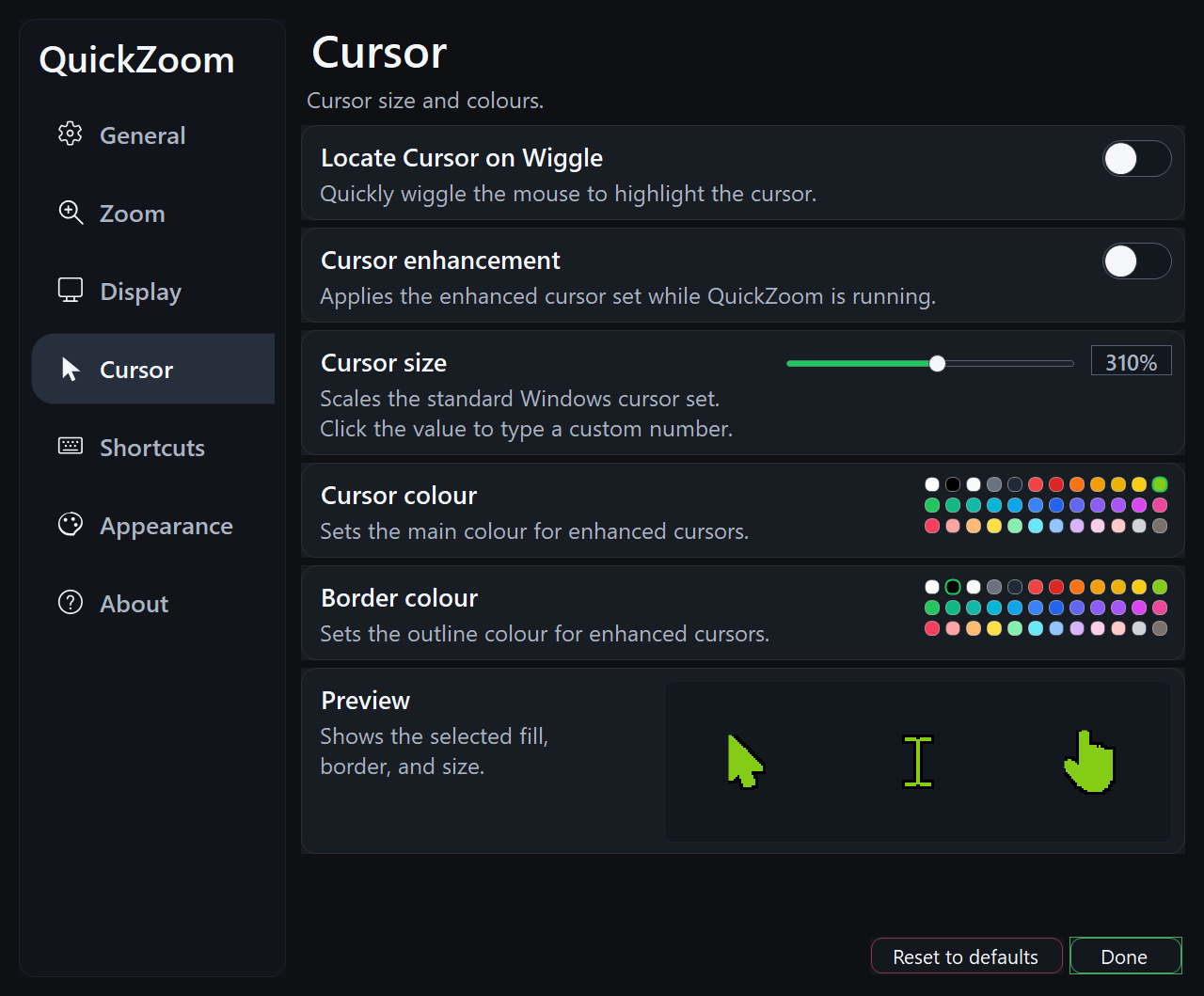
Enhance the cursor, scale its size, choose fill and border colors, and use wiggle-to-locate when the pointer is hard to find.
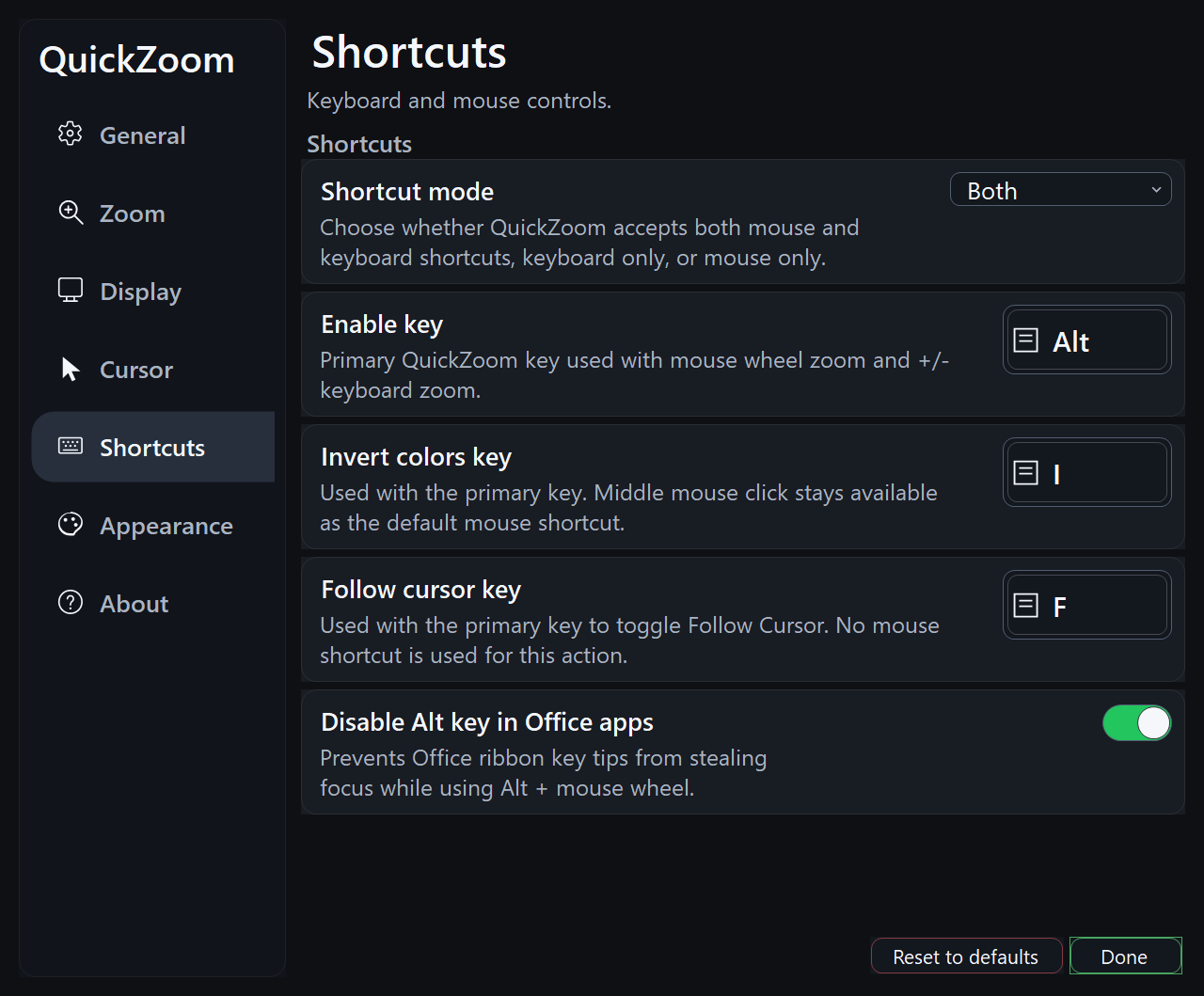
Choose the enable key, shortcut mode, invert hotkey, and follow-cursor hotkey for mouse-first or keyboard-first workflows.
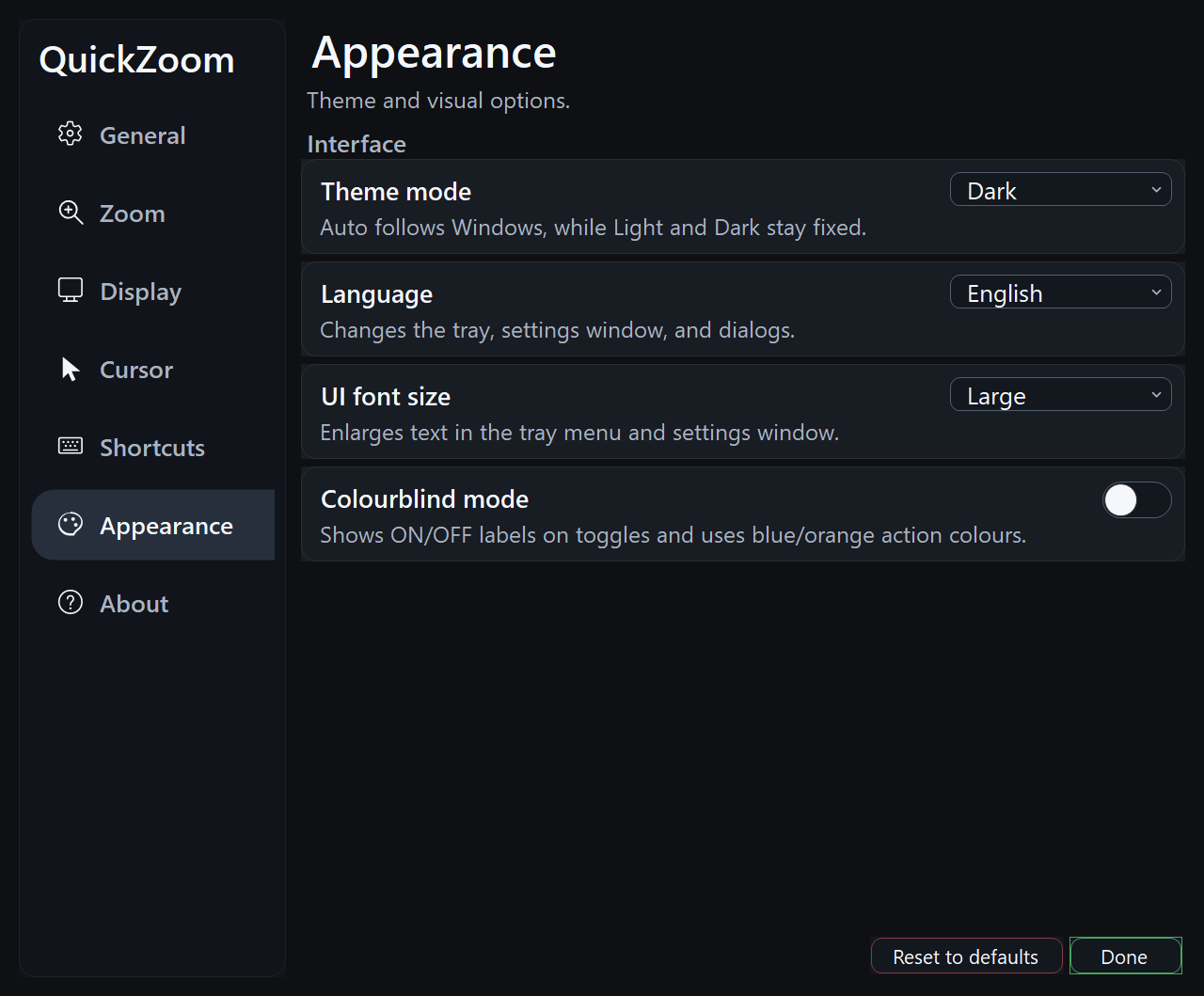
Supports light and dark mode, five built-in languages, simple locale expansion, three interface text sizes, and a dedicated colourblind mode for reduced colour vision.
How to use
These are the default hotkeys. You can change them to anything under Settings.
Setup
Get the latest Windows x64 build from the GitHub releases page.
QuickZoom starts in the system tray and is ready for the default shortcuts.
Use the optional setup flow if you want a permanent startup copy and elevated app compatibility.
Impact
QuickZoom exists because everyday desktop magnification should feel fast, direct, and comfortable. It was built by a visually impaired user who wanted something lighter than large commercial suites and quicker than opening Windows Magnifier.
Download
Get the latest Windows x64 release from GitHub, or open the repository for source code and build notes.